
Using the Vehicle Register
In this user guide, we will walk you through the National Pilot Vehicle Register. The features covered below include Navigation, Editing the Vehicle Register and Bulk Upload New Vehicles.
Accessing the vehicle register
To access your Vehicle Register in the National Pilot system, please follow the steps outlined below:
Login to the National Pilot platform using your credentials.
On the home page, navigate to the "Tools" section.
Select "Vehicles" from the available options.
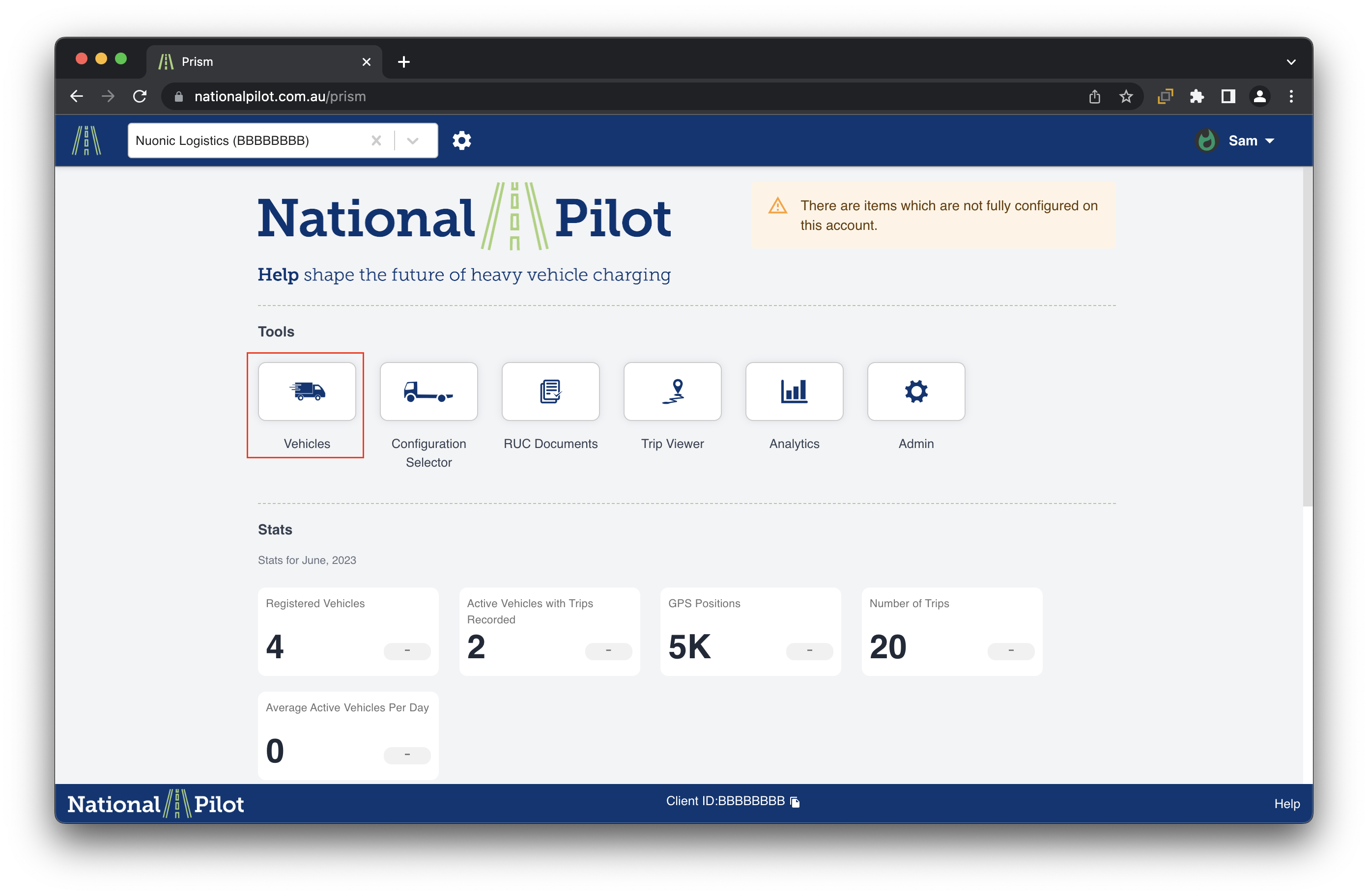
You will be directed to the Vehicles page, where you can view and manage the vehicles that were initially entered during the setup process.
By following these instructions, you will be able to easily access and update your Vehicle Register within the National Pilot system.
Features
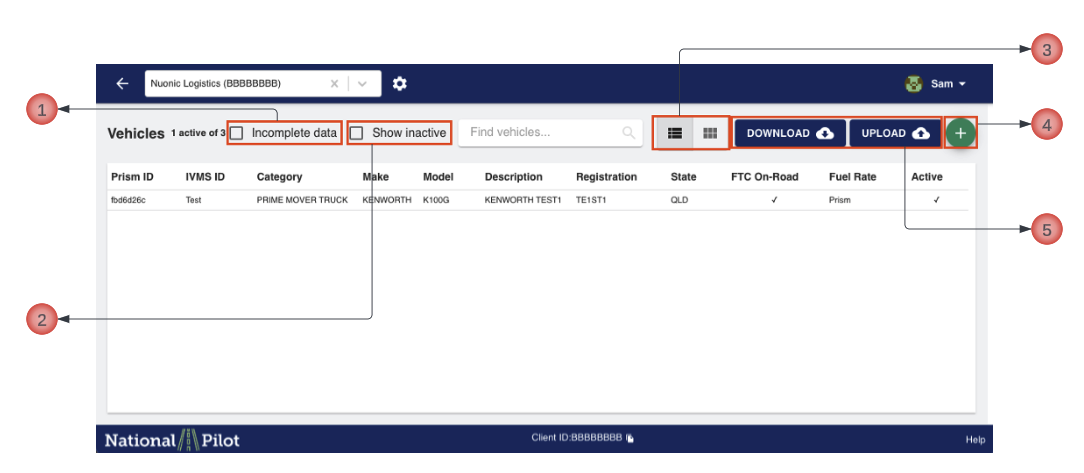
Editing vehicle register
Ensuring precise definition of your vehicles is one of two effective measures to enhance result accuracy. The second approach involves utilising purchased fuel data instead of relying on estimated fuel quantities.
In this section, we will guide you step-by-step through the process of editing your vehicle specifications.
To modify or update the information of an existing fleet, access the Vehicles section in the web application and select the specific vehicle from the provided list by clicking on it. This will allow you to edit and update the desired information accordingly.
Once you perform this step, a window will open displaying the current existing details of the particular vehicle in question.
Deleting or Deactivating the vehicle for reporting
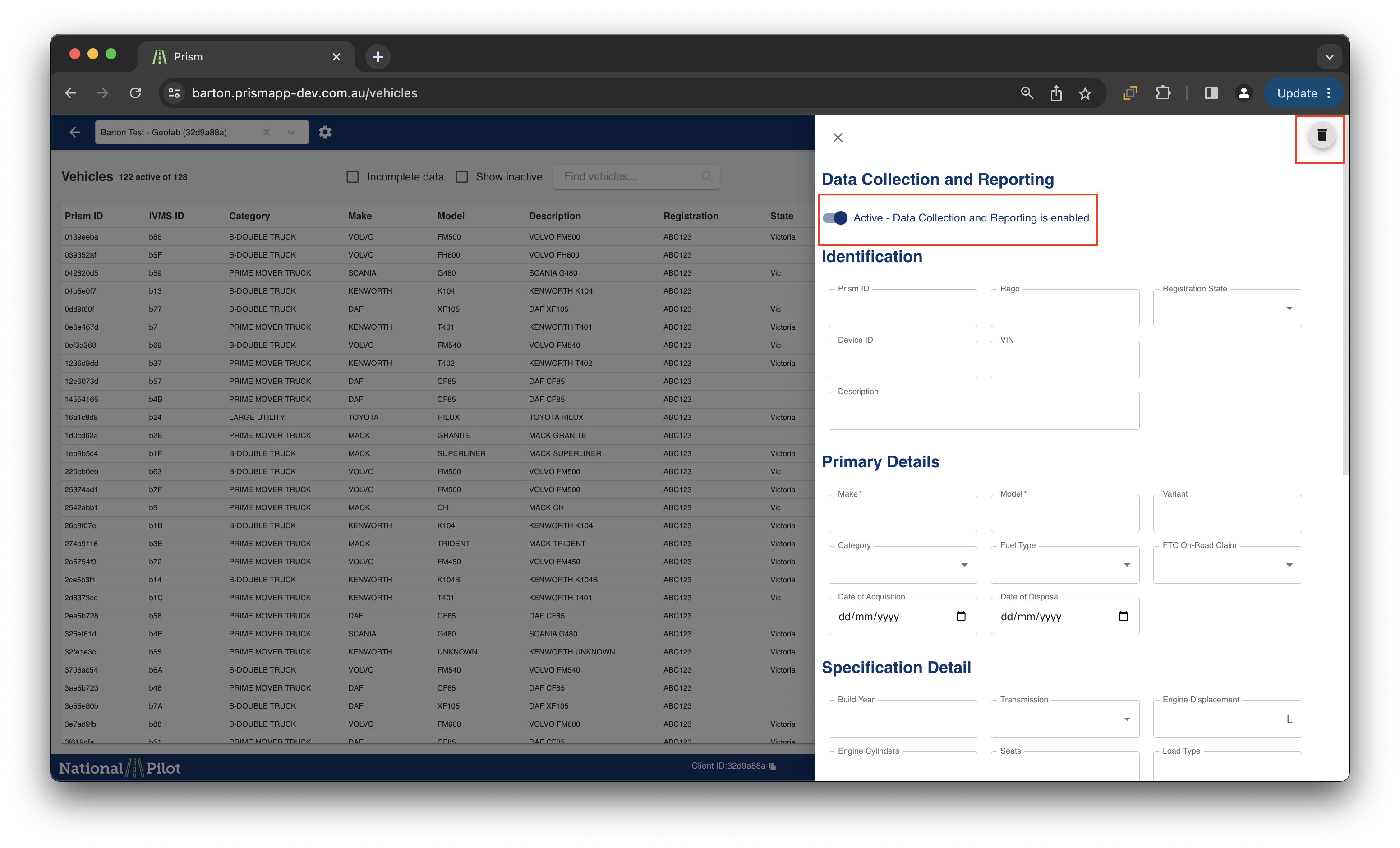
To delete a vehicle from the vehicle register, simply select the vehicle and click on the bin option.
If you wish to deactivate the user, refer to the highlighted switch in the accompanying screenshot below and toggle it to the "deactivate" position. This ensures that the vehicle will not be considered for reporting purposes.
Identification section
Prism ID - This is a unique ID field that is auto generated once vehicle register is filled out.
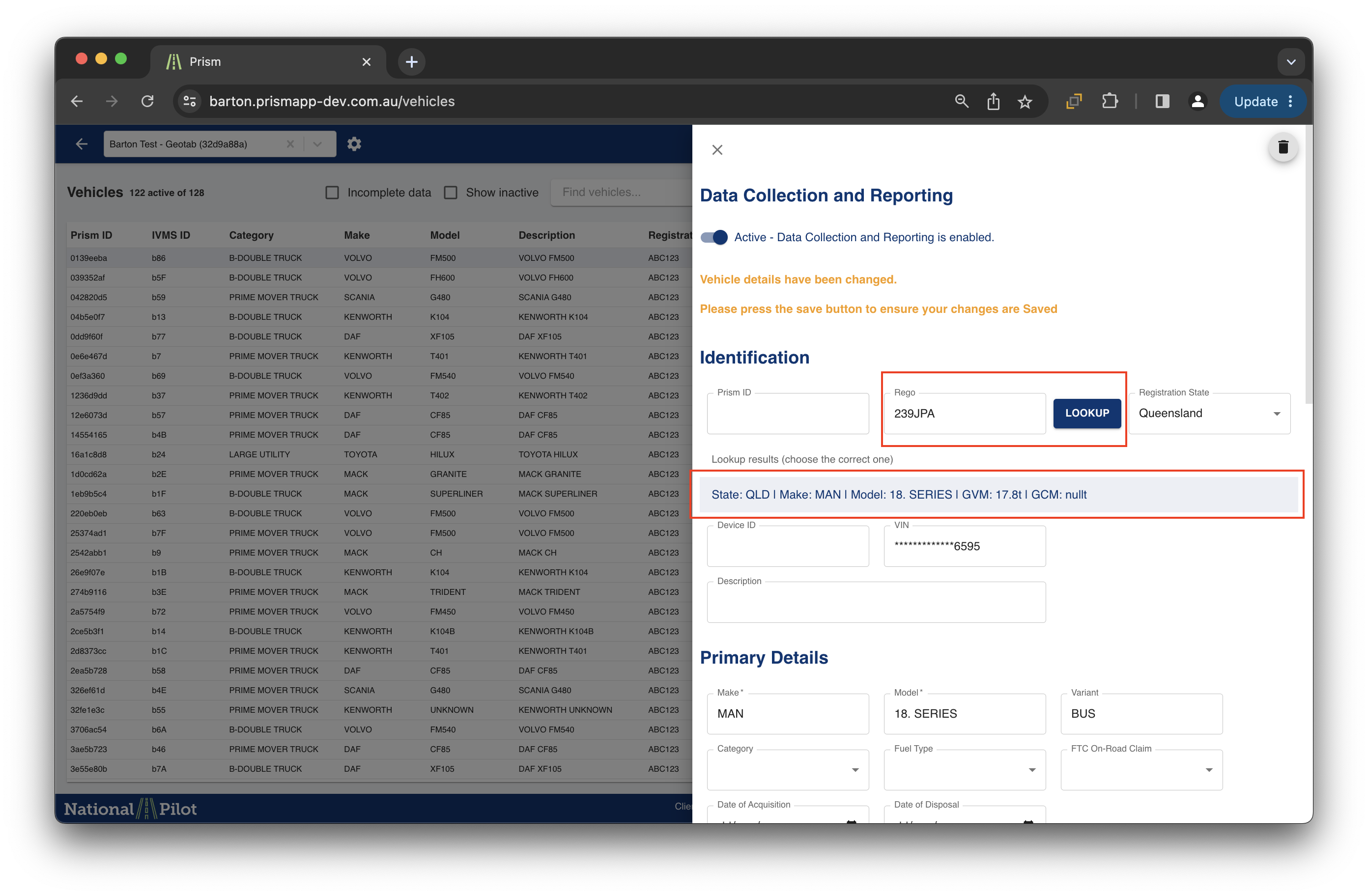
Rego - The "Rego" column refers to the registration number assigned to each specific vehicle.

The “Lookup” feature within the REGO section facilitates the selection of a vehicle from the integrated NHVR lookup database and automatically populates the vehicle register with the available information. Kindly ensure the details of the provided information before proceeding.
Registration State - The "registration state" column indicates the state where the vehicle is officially registered.
Device ID - The Device ID is a uniquely identification number sent by your IVMS provider to the National Pilot helps uniquely identify various vehicles in your GPS data.
VIN - The vehicle identification number (VIN) of a car is a unique identifying code that belongs to a specific automobile. Serving as the car's fingerprint, no two vehicles in operation share the same VIN.
Description - Including a description of the vehicle would be highly beneficial, especially if you have multiple vehicles that are similar. Adding a description to each vehicle in your register helps to differentiate them effectively.
Primary Details Section
Make - The "Make" field specifies the vehicle's brand or manufacturer.
Model - The "Model" field specifies the specific model of the vehicle.
Variant - The "Variant" field specifies the type of body that the specific vehicle has.
Category - Each vehicle must be associated with a category. Please note that the National Pilot vehicle categories do not encompass all possible options, but they do cover a wide range of available vehicles. If you are uncertain about the category that applies to your vehicle, please select the closest available category that matches its characteristics.
Fuel Type - The "fuel type" refers to the specific type of fuel used by the vehicle.
FTC On-Road Claim - In the dropdown options, you will find the following choices to determine whether you can claim FTC on-road. Please refer to the details below
YES: The vehicle has a Gross Vehicle Mass (GVM) exceeding 4.5 tons.
NO: The vehicle has a GVM of less than 4.5 tons.
If a vehicle is marked as "NO" (i.e., under 4.5T GVM), its fuel usage for public roads will be set to zero (0). This is because vehicles under 4.5T GVM are not eligible for public road FTC.
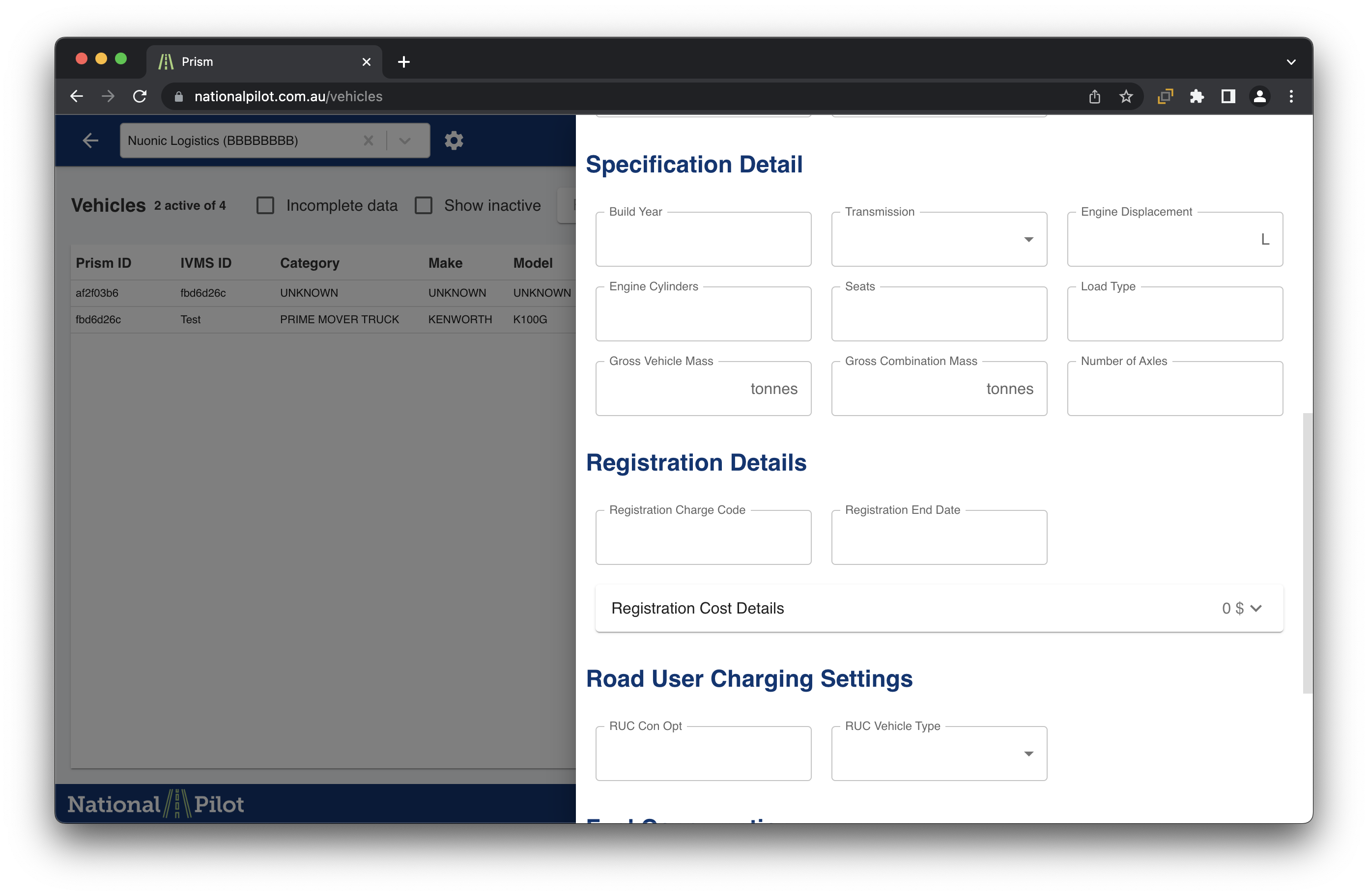
Specification Details
The vehicle specification section plays a crucial role in capturing essential details about each vehicle in a systematic manner.
It includes several input fields such as the build year, which indicates the year the vehicle was manufactured, the transmission type, which refers to how power is transferred to the wheels (e.g., automatic or manual), the engine cylinders, which are the chambers where the fuel and air mixture combusts to generate power, the seating capacity, the type of load the vehicle can carry, and important weight-related metrics like GVM and GCM.
Registration Details
The registration details section is designed to capture crucial information pertaining to vehicle registration. It includes essential details, such as the NHVR charge code associated with each vehicle, the registration end date, and a comprehensive breakdown of the registration cost.

Kindly review the registration breakdown and make sure to add or remove any missing charges that are relevant to the specific vehicle.
Please note : Registration breakdown is exclusive of CTP or Third party insurance charges.
Steps to add / remove a registration charge from the comprehensive breakdown :
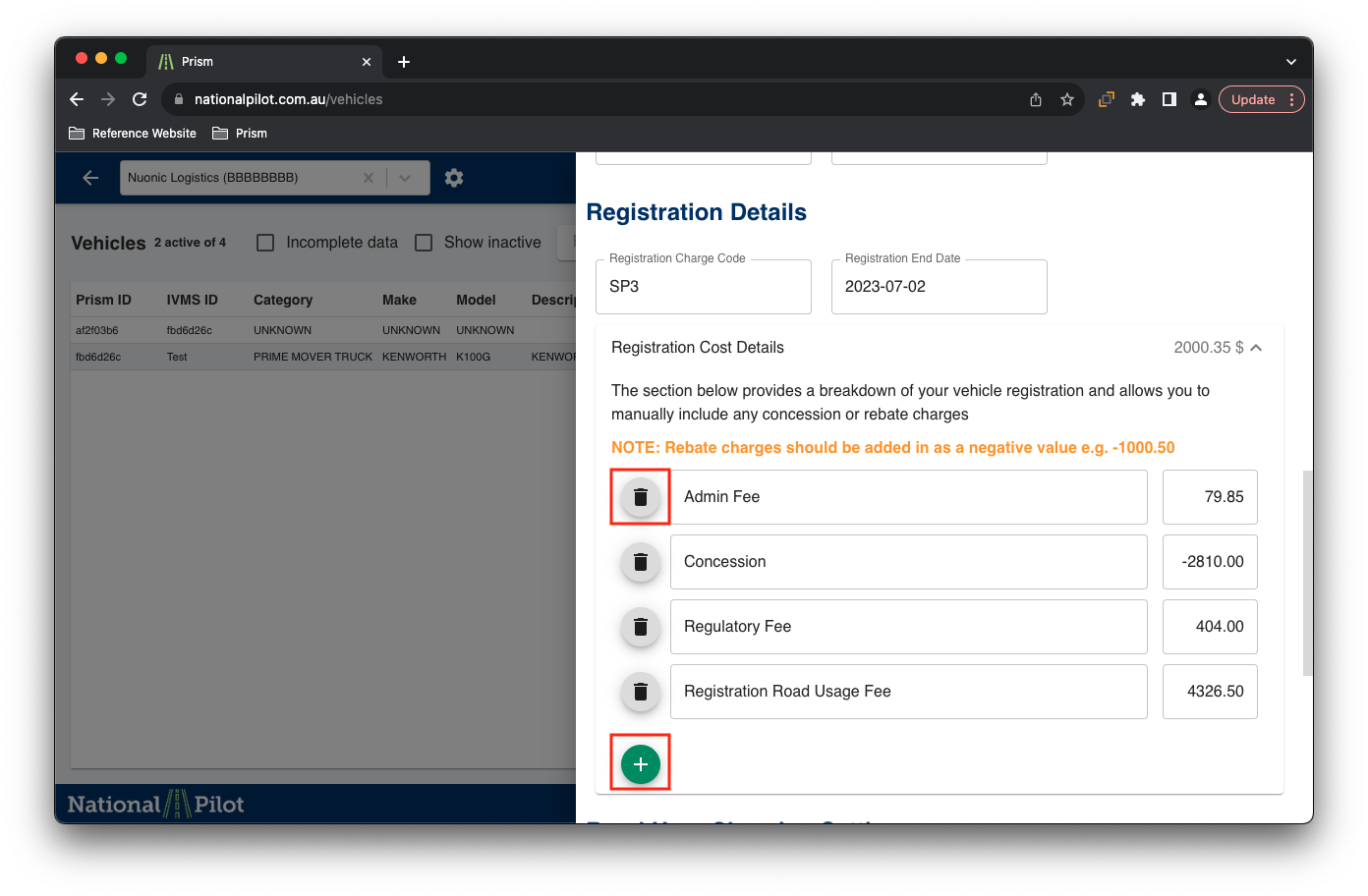
From the screenshot above, selecting the '
 ' icon will create a new editable section where you can enter the charge description and charge value. Once entered, this information will be added to the comprehensive registration charge total.
In order to delete a charge, Please click on the bin icon as highlighted in the screenshot above.
Road User Charging Settings
The road user charging section presents essential details concerning the concept of operation associated with each specific vehicle and its classification as a heavy vehicle, such as Rigid truck, prime mover, trailer, and more.
Verifying that the vehicle is correctly classified under the concept of operations and the designated vehicle type is crucial to ensure accurate mock invoice reporting
Fuel Consumption
The fuel consumption section serves as a repository for capturing vital fuel burn rate data, alongside the corresponding fuel consumption rates.
This section provides comprehensive instructions on how to enter your vehicle's fuel consumption rates and auxiliary fuel rates.
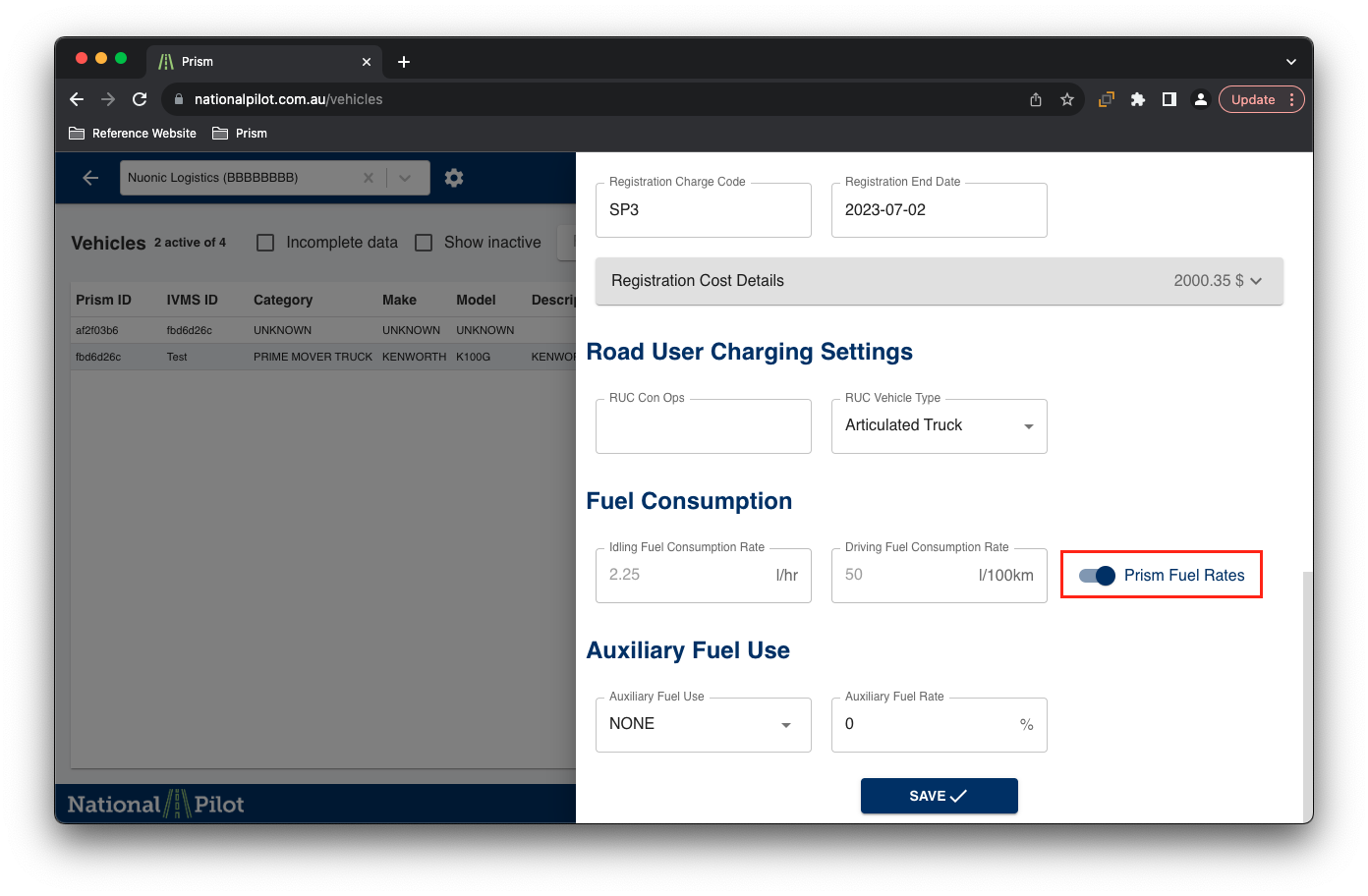
Prism fuel rates can toggled on or off by clicking the toggle switch provided.
In this section, users have the option to toggle the Prism Fuel Rates on or off.
When switched off, it allows you to enter and utilise your custom fuel burn rates, rather than relying on those provided by Prism.
When switched on, it allows you to access Prism fuel rates corresponding to the vehicle information edited by the customer.
It is advisable to manually input driving and idling fuel consumption rates for individual vehicles, which not only enhances precision but also promotes fair and reasonable practices.
Furthermore, it is crucial to acknowledge that multiple factors influence a vehicle's fuel consumption rates, such as the vehicle condition, speed, travelled terrain, and more.
Understanding the influence of these rates on the computation of your fuel tax credits affecting the overall PAYGO charge is crucial. Accuracy of these charges improves significantly when entering idling and driving fuel consumption rates individually for each vehicle.
Visit PAYGO Charges page to learn more on PAYGO charge calculation
Auxiliary Fuel Use
Within the Auxiliary fuel use section, you will find details pertaining to the auxiliary fuel consumption of each specific vehicle, as well as the corresponding fuel rate used for that purpose.

National Pilot assumes that as a participant, will adopt a "fair and reasonable" estimation for auxiliary usage and incorporate it into your reports. In this context, both non-public road and auxiliary usage will be considered for each vehicle during the calculation process
Visit ATO for more information on auxiliary fuel usage information and charge percentages associated - ATO - Auxiliary fuel information
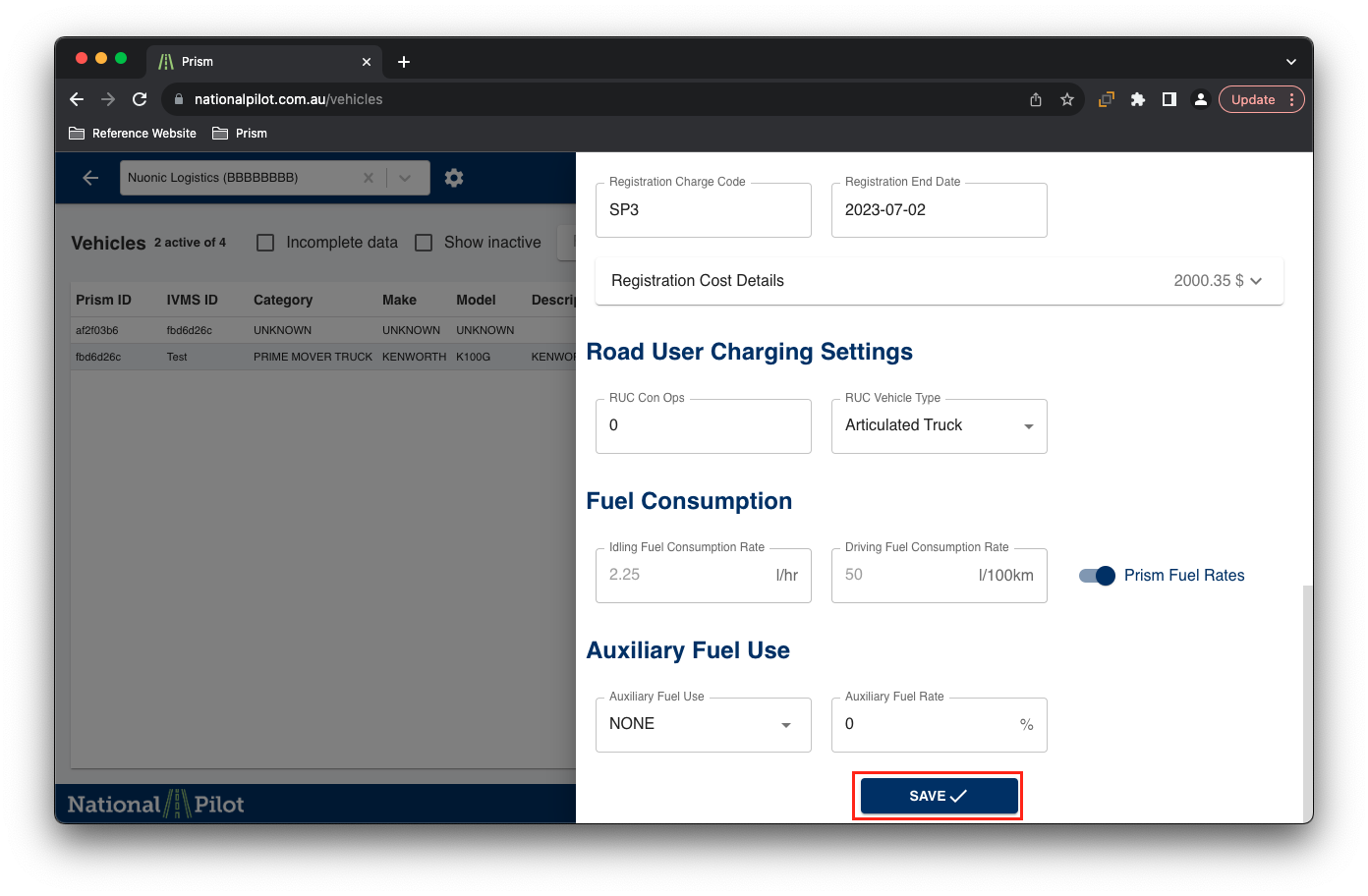
Kindly remember to save any modifications made to the vehicle register by selecting the "Save" option located at the end of the pane.