Adding/Removing users to the account
To add or remove a report recipient email, Log into the National Pilot web application.
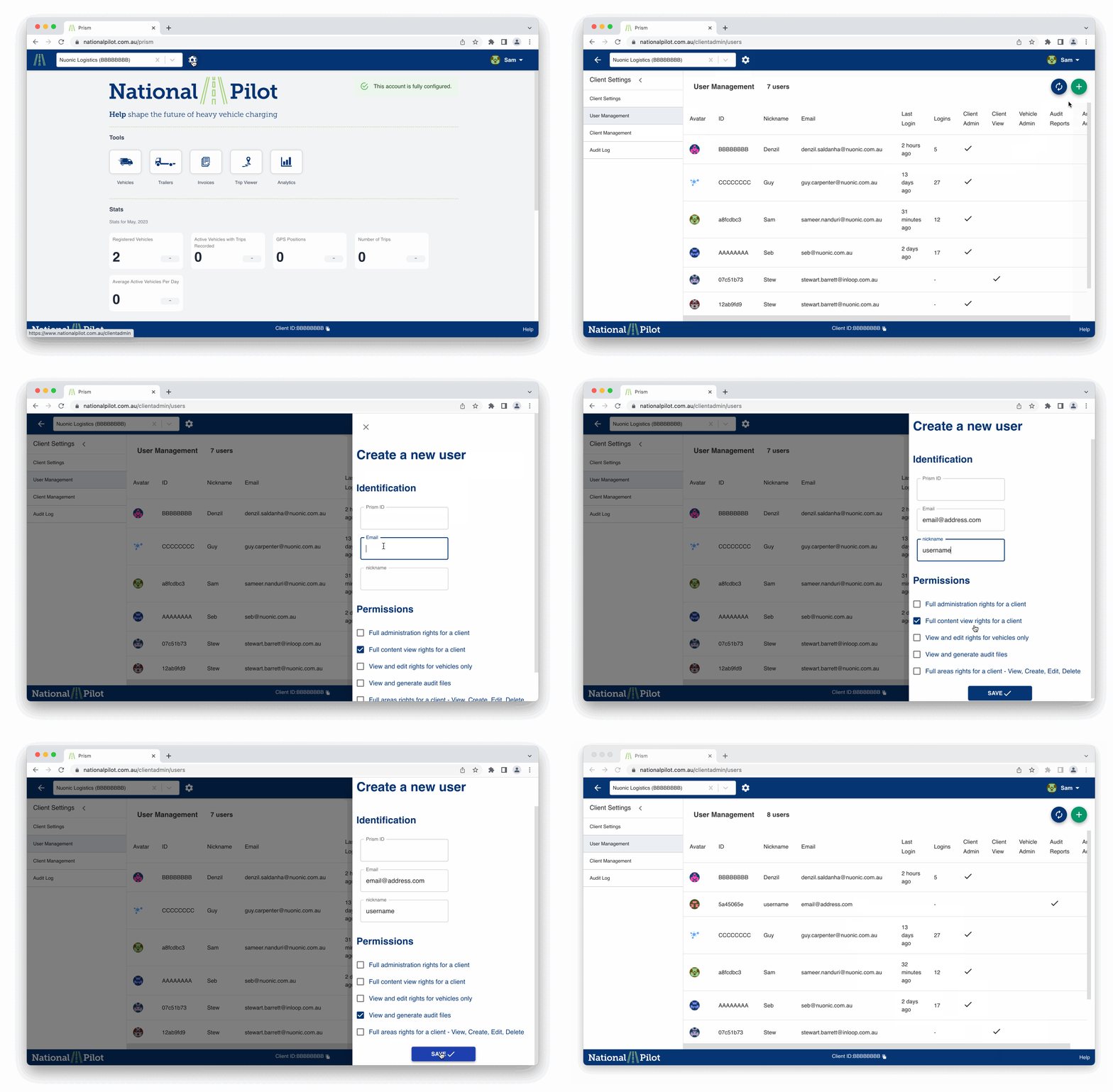
The above animation shows the process of adding a new user with minimum permissions.
Step by Step:
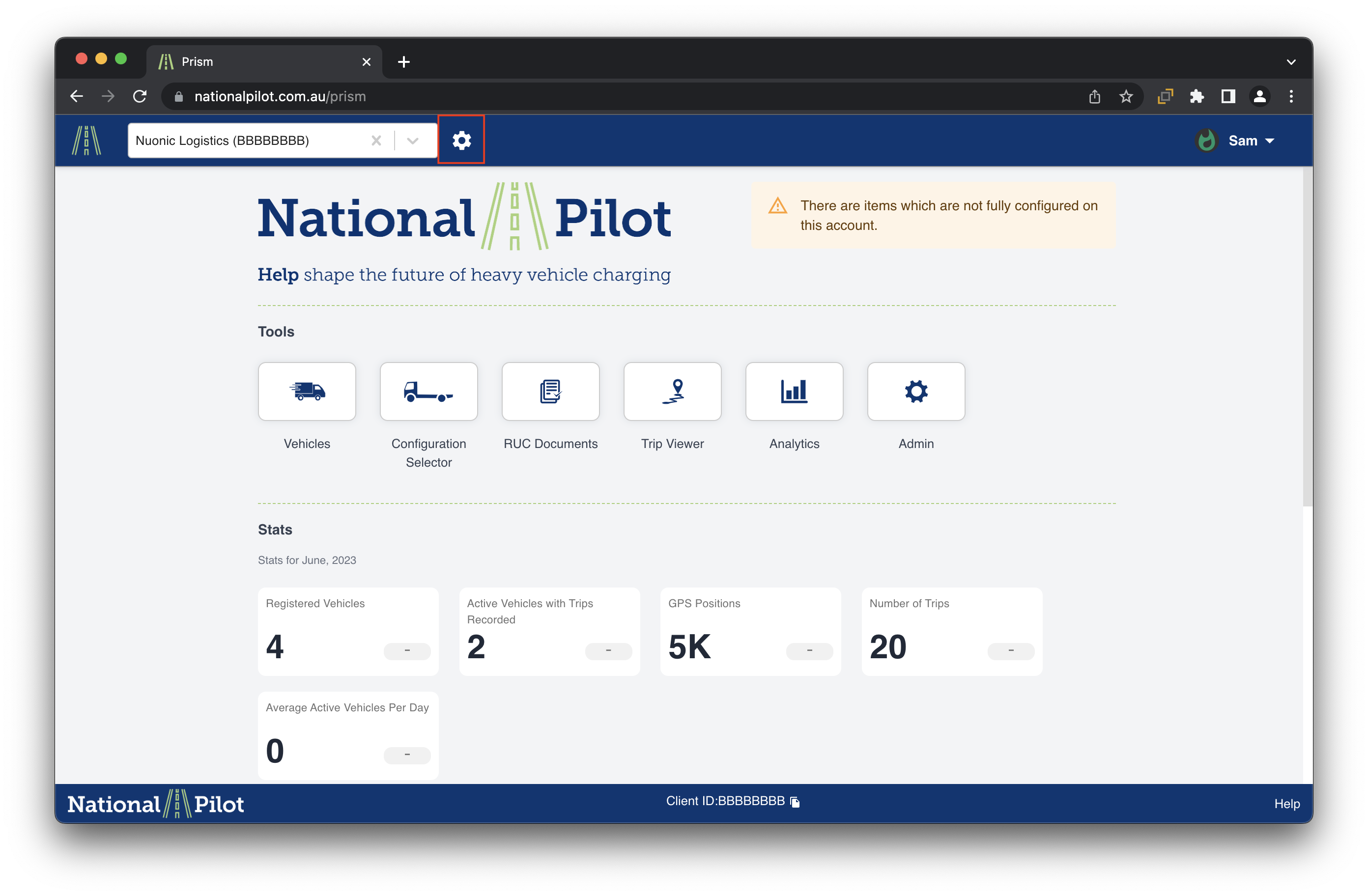
Once logged in, you would be able to see your account Home page. From the home page, click on the settings icon in the top left corner, next to the search bar. This will open a pane to the left-hand side.
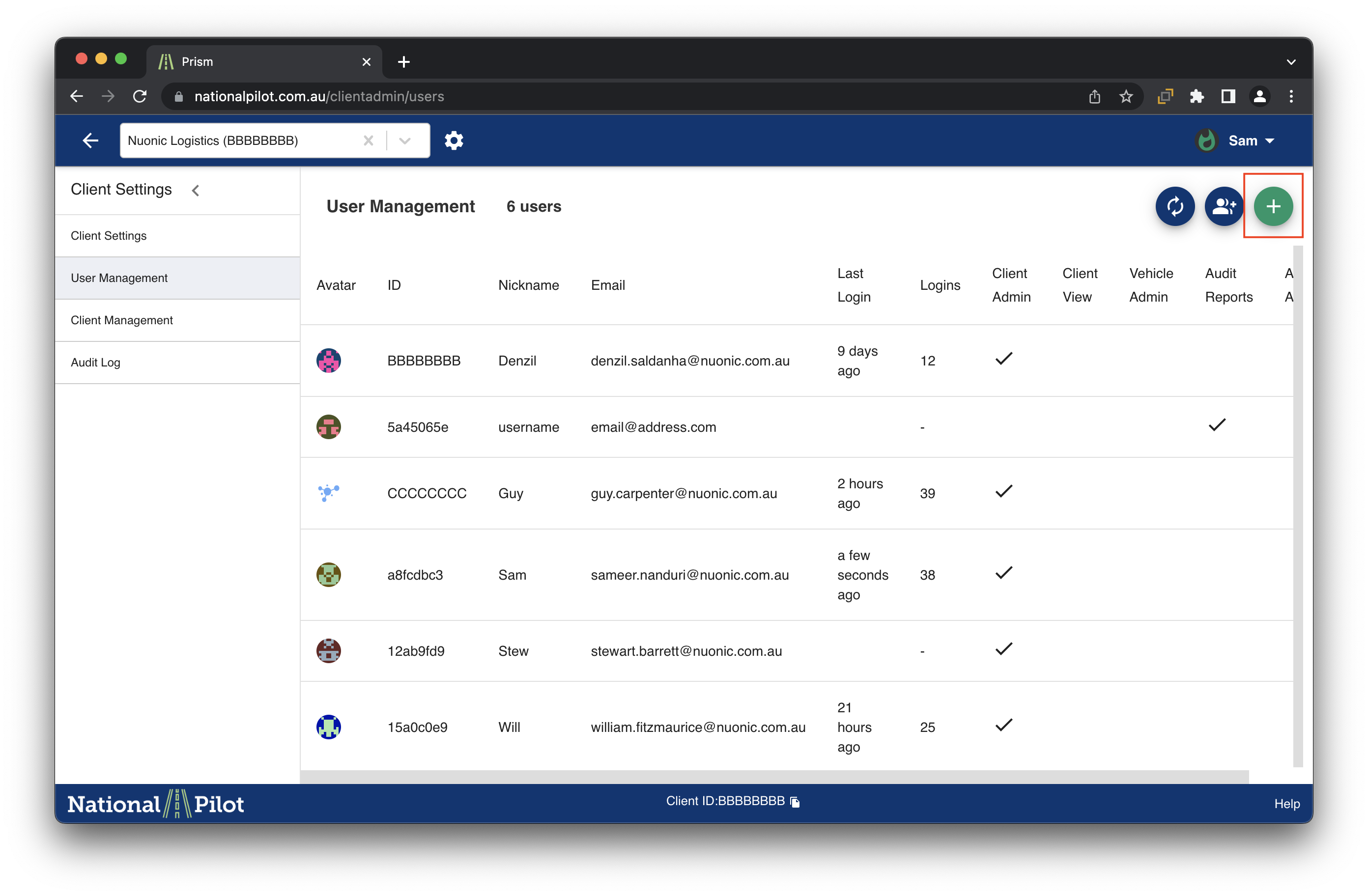
From the pane on the left hand side, Select User Management. This will open a complete list of users who have access to your account. Next to each user, will show their access level. Please refer to the table below for further information on access.
.png?inst-v=9692c628-e599-4bf2-96c0-e422e009b222)
If you wish to add a user, select the User Management page from the pane the left hand side. Once the User Management tab is open, select the '+' option on the top right corner of the page. Selecting the option would open a Create new user page.
From the create a new user page, please enter the new user’s email and nickname. Please leave the Prism ID blank.
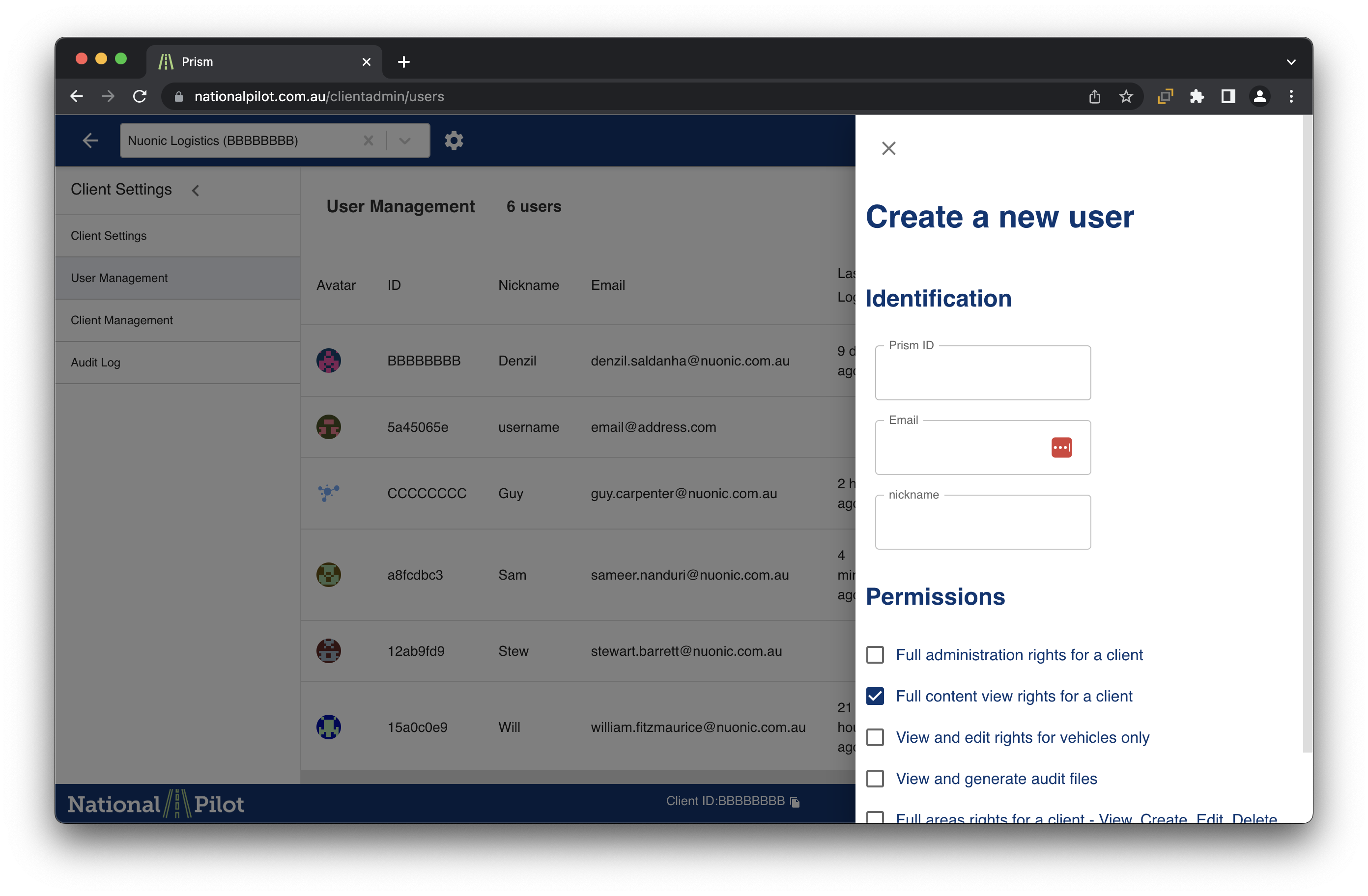
Select the permissions that you wish your new user would have. Then remember to select save.
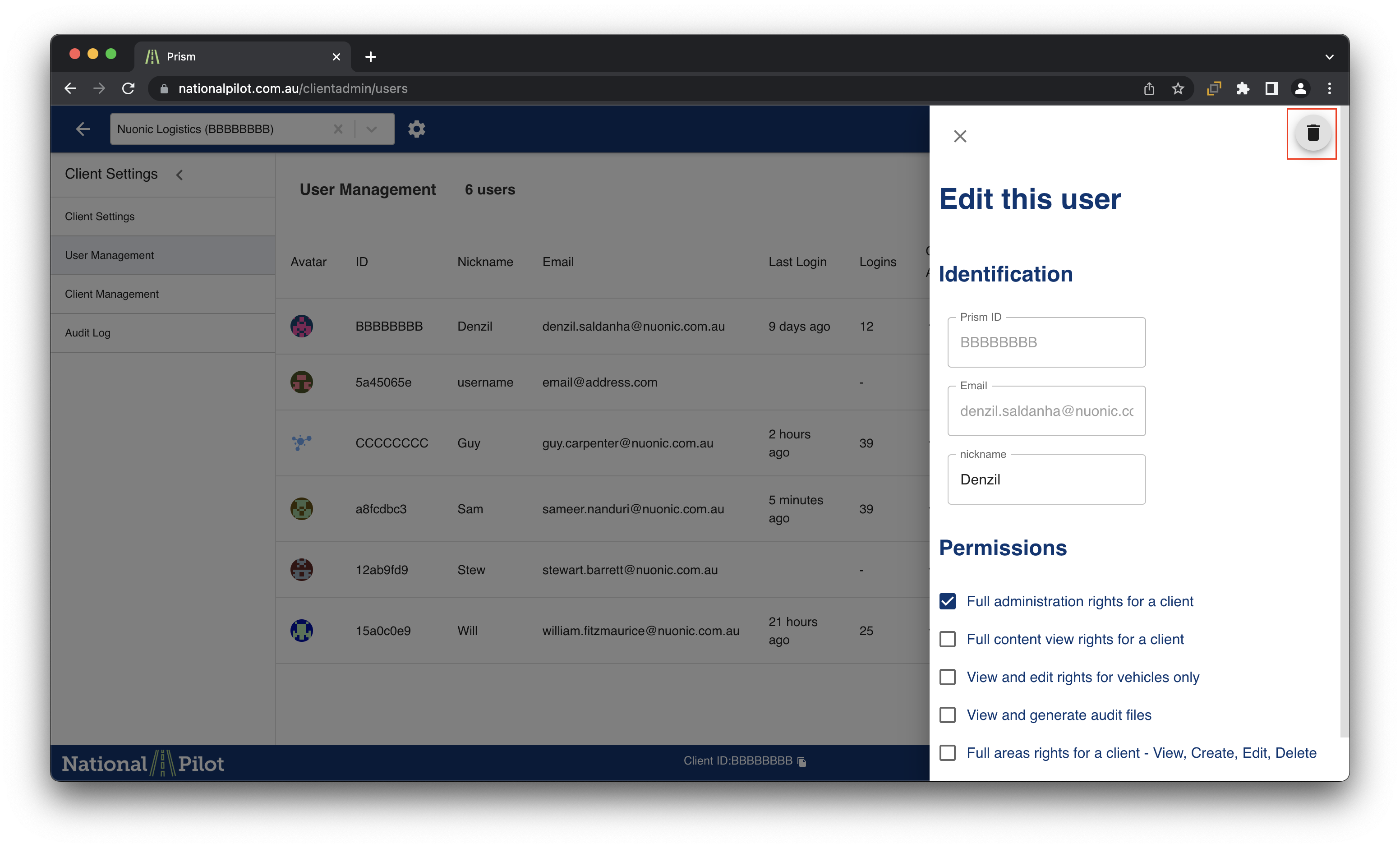
If you wish to remove a user, select the user management pane and click on the user you wish to remove from the user list. By doing so, an edit pane will appear on the right-hand side of the screen.
From the edit user pane, select the ‘bin’ option on the top right corner to remove the user.
Next steps: Accessing your mock Invoices