Logging into web app account for the first time
When logging into the web app for the first time, this page will present you with a detailed guide, offering step-by-step instructions to assist you in navigating through the initial setup process and acquainting yourself with the various features and functions of the web app.
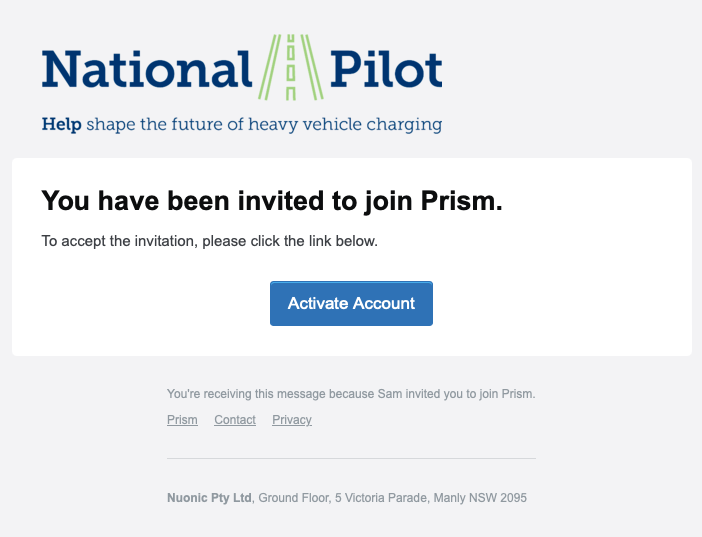
Setting up your password
When users receive an invitation link, they will be prompted to create their password during the setup process. This step is essential for ensuring the security of their account and granting them exclusive access to the platform. By setting up a unique and confidential password, users can confidently engage with the system and protect their information from unauthorised access.
The email will come from support@nationalpilot.com.au, if you can’t find the email please check your junk folder.
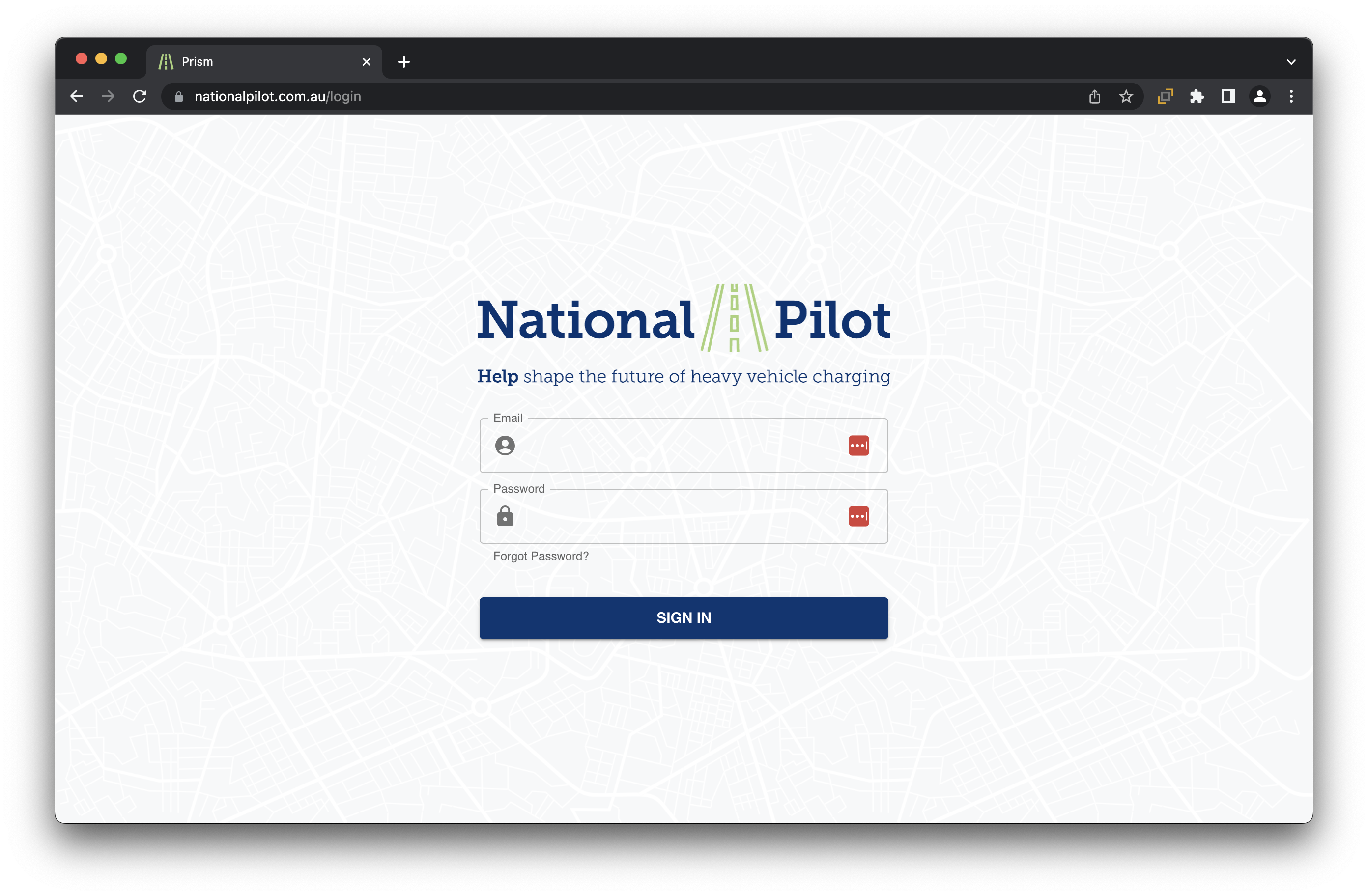
With your password successfully set up, users can conveniently log into the web app whenever you choose by accessing the link https://www.nationalpilot.com.au/. In case you forget your password, you can easily reset it at any time by utilising the "Forgot Password" link, ensuring continuous access to the web app without any inconvenience.
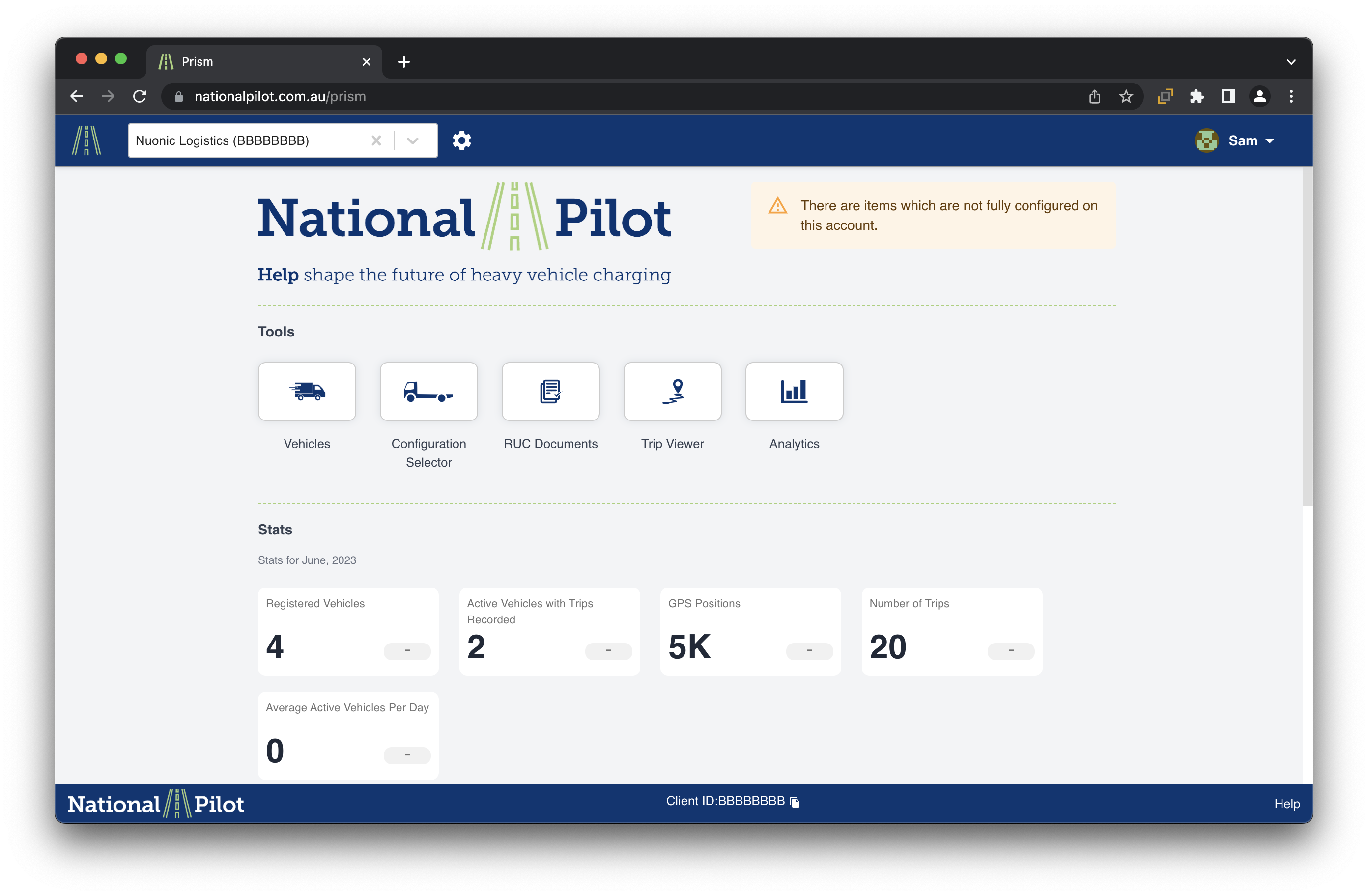
When you log in, you will be directed to the home page of the web app, providing you with immediate access to the key tools within the platform. From this central hub, you can easily explore and utilise the various features and functionalities.
Checking your user settings
You have the flexibility to add as many users as you need to your account. There are various user permissions to select from, depending on what level of access you would like each user to have.
Please follow the steps below to check your access level
From the Home page, click on the settings cog in the top left-hand corner, next to the search bar. This will open a pane to the left-hand side.
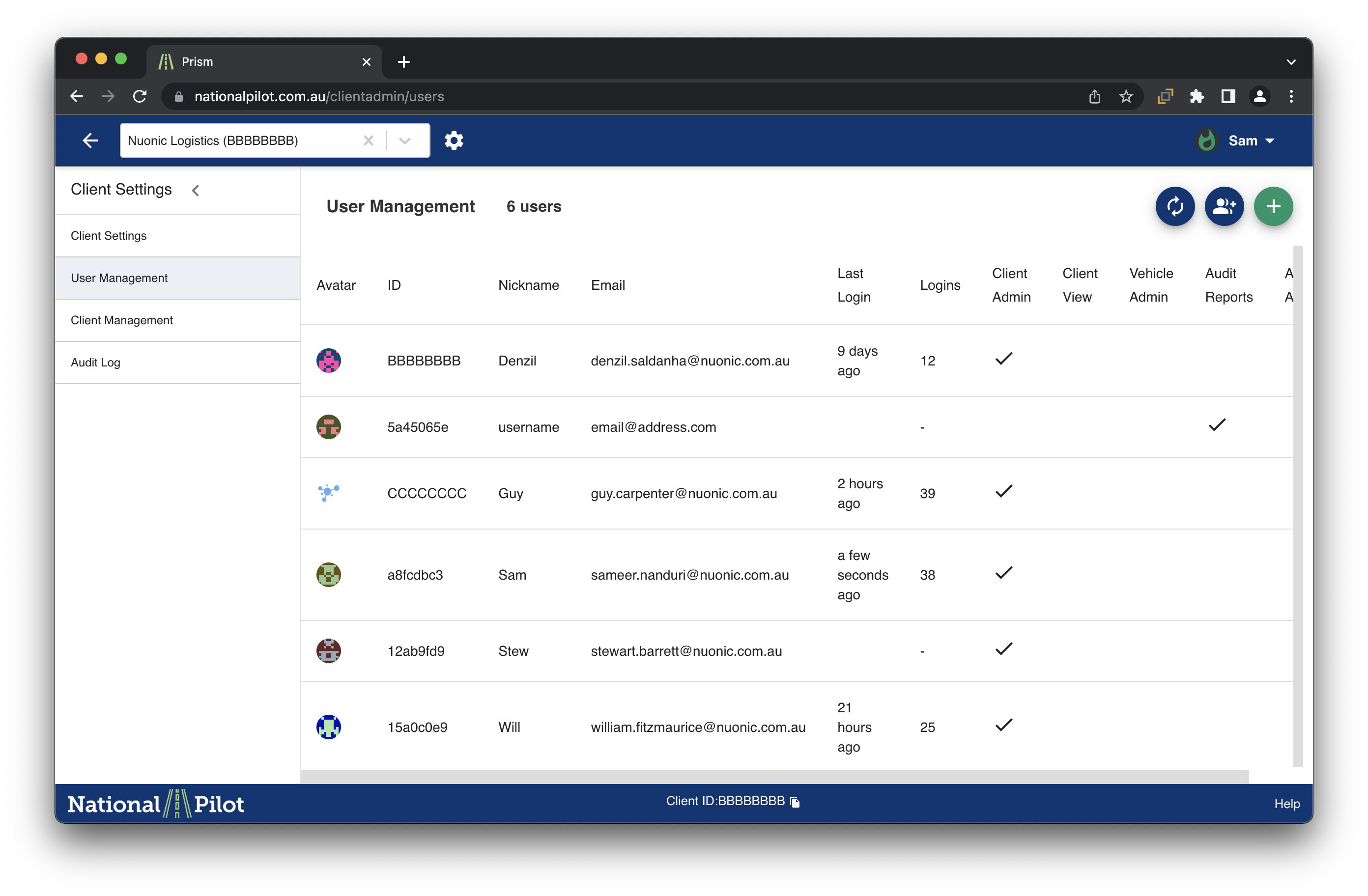
Select User Management. This will open a complete list of users who have access to your account. Next to each user, will show their access level. Please refer to the table below for further information on access.
.png?inst-v=9692c628-e599-4bf2-96c0-e422e009b222)
If you wish to remove a user, click on the user from the list. An edit pane will appear on the right-hand side of the screen
Click the Bin icon in the top right-hand corner
If you wish to add a user, from the User Management page, select the green + at the top right-hand corner of the page. A Create new user page pane will appear on the right-hand side of the screen.
In this pane, enter the user’s email and nickname. *Leave the ID blank
Select the permissions that you wish your new user to have. Then remember to select Save.
Next Steps: Adding/Removing users from the National Pilot web application